Coupon Options Screen

In this Topic: Show

Overview

This screen is opened when the [Edit] button next to the Coupons line of the pricing summary on the Pricing Tab of the Orders screen is clicked. It's purpose is to allow the user to select a pre-defined "virtual" coupon and apply it against an order total. Refer to the Knowledge Base topics, Coupons, and Add/Edit Coupon Screen for information about creating coupons in the Order Manager.

Click the Show link next to "In This Topic" at the top of this page to see a series of links in outline form, which can be used to quickly jump to that section of the topic.

In addition, major topics may provide a brief synopsis of a field's purpose or direct the reader to the appropriate section of the topic by scrolling over the image. To return to the previous location within the same page, right-click the mouse and select [Back].

If clicking a field directs the reader to a different Knowledge Base topic, it will open in a new tab or window, leaving the currently viewed topic open. The browser's settings determine whether a new tab or window is opened.
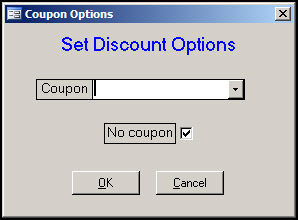
Description of the Coupon Options Screen

Figure 1: Coupon Options Screen (Set Discount Options)

Coupon Drop-down List

No coupon Check Box

OK Button

Cancel Button

Adding a Coupon to an Order

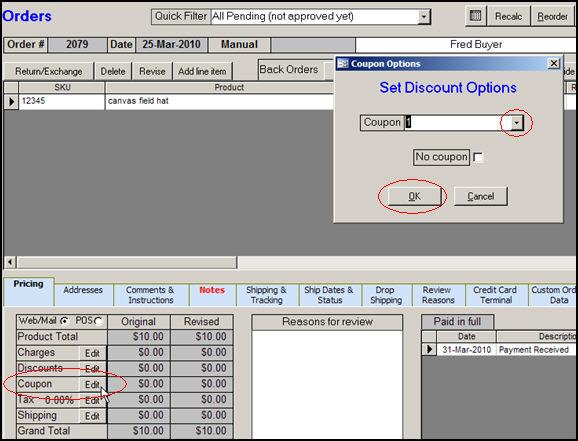
  1. Click the [Edit] button next to the Coupon line on the pricing summary of the Orders screen.

  2. The Coupon Options screen opens. If coupons have been defined in the program, the drop-down list will be populated with a their names, as well as start and end dates. The No coupon check box will be un-checked.

Figure 2: Pricing summary of the Orders screen - adding a coupon to an order

  1. Choose the desired coupon from the drop-down list and click the [OK] button.

  2. The order must meet the criteria specified when the coupon was created before it will be applied against the order total. For more information refer to the Coupons topic in the Knowledge Base.

  3. The coupon will appear as a line item on the order and the Coupon line of the pricing summary will reflect the value of the coupon in the Revised column.  

Revoking a Coupon that is already Applied to an Order

  1. Open the Orders screen and navigate to the order in question.

  2. Click the [Edit] button next to the Coupon line of the pricing summary.

  3. Select the ID of the coupon to be revoked from the drop-down list.

  4. Check the No coupon box.

  5. Click [OK] to proceed.

  6. The Coupon line of the pricing summary and the order total are adjusted accordingly.

  7. The line item for the coupon remains in the Order Details section of the screen, however, it has "Coupon disallowed" in the description field instead "Discount" and the ID of the coupon and the value of the coupon is added.


Created: 9/30/11

Go to Top

