
Order Manager
Version 8
Order Manager
Version 8
Contents of this Topic: Show
Go to the Main Menu>Manage My Inventory>View & Manage My Inventory>Attributes & Options tab.
Navigate to the desired product record.
Select Add Option List.
Enter a name for the Option List in the List Name field.
Optional: The Prompt field pertains only to a Miva Web store and entering or changing the value in this field has no affect on the Web site.
Optional: The Image Path field contains the path to the image of the product at the Web site.
Optional: If this Option List (attribute) does not have options associated with it, enter modifiers that should be added to the base Price, Cost or Weight fields of the inventory item when this attribute is purchased. These fields are set to zero by default, and will not be used if options are assigned to this attribute.
Optional: Choose the type of control that will be used to display the options in the list to the user when an order is being placed (Miva Merchant only):
Drop-list
Radio Buttons
Check Box
Text Field
Text Area
Optional: If it is necessary to choose an option from this list when ordering the product, select the box labeled Required.
Optional: If this Option List should be used by Stone Edge when building sub-SKUs, select the box labeled Use when building Sub-SKUs.
Select Save.
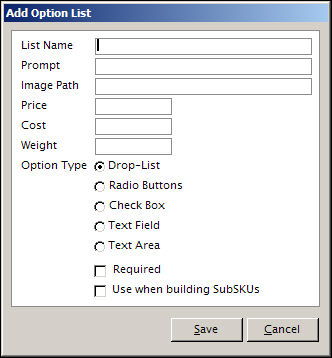
Add or Edit Option List screen
Go to the Main Menu>Manage My Inventory>View & Manage My Inventory>Attributes & Options tab.
Navigate to the desired product record.
Select an Option List by selecting its row (in the upper grid).
Select the Edit Option List button.
Make the necessary changes to the data in this screen and select Save to retain the changes. Select Cancel button to abandon the changes.
Go to the Main Menu>Manage My Inventory>View & Manage My Inventory>Attributes & Options tab.
Navigate to the desired inventory record.
Select an Option List by selecting its row (in the upper grid).
Select Delete button.
The program prompts the user for confirmation before deleting the Option List and all of its Options.
Select OK to proceed.
Created: 5/30/12
Revised: 6/11/12
Published: 08/19/15