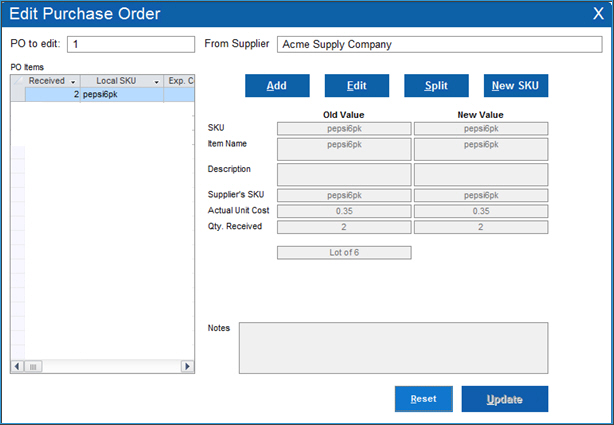
Edit Purchase Order
Contents of this Topic: ShowHide
Overview
This screen is accessed through Edit
Received on the Receive Purchase
Order screen or by double-clicking a purchase order which is already
received at the Purchase Orders
view.
It is used to make changes to the Received
records of a purchase order. Select an item from PO
Items and select Add, Edit, or Split
to make changes to its Received
records.
It is also possible to add a New
SKU if the supplier sends a different item as a replacement for
a product you ordered.
Make your changes and select Update.
Description of the screen
Add
- allows you to add another existing SKU to
the current purchase order
Edit
- select an item from PO
Items and make changes to the SKU,
Supplier's SKU, Actual
Unit Cost, or Qty Received
- you can also convert Single Units to Lots
and vice versa
From Supplier
- displays the name of the supplier from whom
the merchandise is ordered
New SKU
- select this to add a new SKU to your inventory
database
- an example of when you would use this is if
the supplier sends a new product as a replacement for one of the items
in the purchase order
Old Value/New Value
- displays the current values of the SKU,
Description, Supplier's
SKU, Actual Unit Cost,
and Qty Received and
enter new values in some fields
PO Items
- lists the items presently in the Purchase
Order
PO to edit
- displays the Monsoon Fulfillment Manager
purchase order number
Reset
- clears unsaved changes from the screen
Split
- allows you to split a single Received record
into two Received records
- you may need to do this if the supplier does
not send the entire quantity of an item at the same time, or if the
unit cost has changed since the purchase order was created
Update
- select this to make your changes permanent
Additional information
Purchase Orders
Receive
Purchase Order
Created:
6/16/14
Revised:
6/18/15
Published:
08/19/15